Floating license server setup
Managing access to floating licenses
Table of content
This page describes the setup of the floating license server - typically an IT system administrator.
Databases
QuidLM servers store data in subdirectories of the directory specified by QLM_DB_PATH environment variable.
If the environment variable is not set, the current working directory is used.
If specified, the directory must exist.
You will recognize a database directory by its .mdb extension. Notable database directories are:
- order.mdb
- usage_stats.mdb
- users.mdb
Each database is implicitly limited in size to 4GiB. If you would like to change this limit,
set the QLM_MAX_DB_SIZE environment variable. To make that number more readable, you can use
K, Ki, M, Mi, G, Gi, T, Ti suffixes (lowercase version of those will be recognized too),
to mean powers of 1000 or of 1024. For example, this sets the 10 GiB limit:
set QLM_MAX_DB_SIZE=10gi
Increasing the size limit does not degrade the performance and does not increase the footprint - the limit is a safety feature to prevent consuming all storage and causing the computer to become unresponsive if something goes wrong.
The database directories contain data in the LMDB format.
LMDB is a key-value store with excellent performance, but its storage format is not ubiquitous.
In addition, its binary file format relies on the memory representation of the machine, which means a
database file cannot be directly moved between computers with different architectures.
Specifically, the databases created on big-endian platforms cannot be read on the little-endian ones
and vice versa. Similarly, 32-bit and 64-bit systems are incompatible.
To facilitate import and export of data from its databases, QuidLM is shipped with lmdb_copy utility.
The utility converts LMDB databases to and from the JSON format, which is prolific and human-readable.
To run the utility, provide it with two file paths as command line arguments. The paths can be
- a file with
.jsonextension - a dash (
-), meaning the standard input or output stream, in which case the content is still JSON - a directory with
.mdbextension - an LMDB database
The first argument must be an existing file or directory (or the - symbol specifying JSON data piped via the standard input),
and the data in it will be converted and written into the path specified by the other argument. For example,
lmdb_copy usage_stats.mdb usage_stats.json
lmdb_copy order.json order.mdb
lmdb_copy order.mdb backup.mdb
See the Backup section for how to use the lmdb_copy utility to ensure disaster recovery.
High availability and disaster recovery considerations
The server provides software licenses and is typically a mission-critical application, which should be available 24/7.
To ensure uninterrupted service and disaster recovery, the following measures can and should be taken:
- Ensure the server is started automatically every time the computer starts.
- Monitor the health of the server.
- Have more than one server - in the active-active or active-passive configuration.
- Backup the data.
The subsequent sub-sections describe how the above measures can be implemented.
Autostart (Windows)
On Windows, this can be achieved by creating a task in the Task Scheduler that starts the server.
The rest of this subsection describes how to create such a task.
-
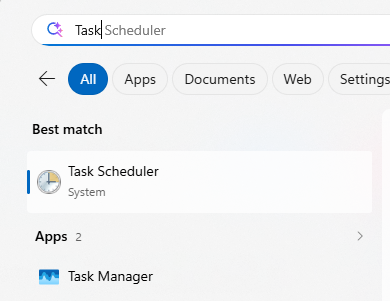
Press the Windows key (🪟), and type Task Scheduler. Click on the
Taks Schedulericon to start it.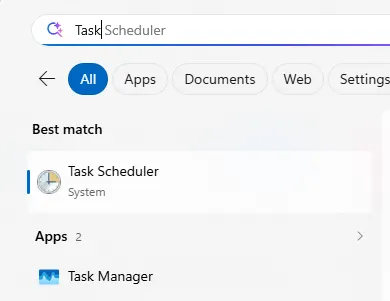
-
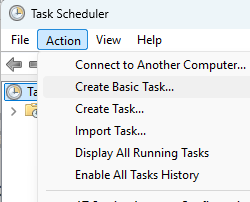
Select
Create basic task...in theTask Scheduler'sActionmenu.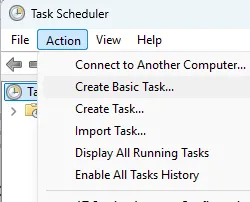
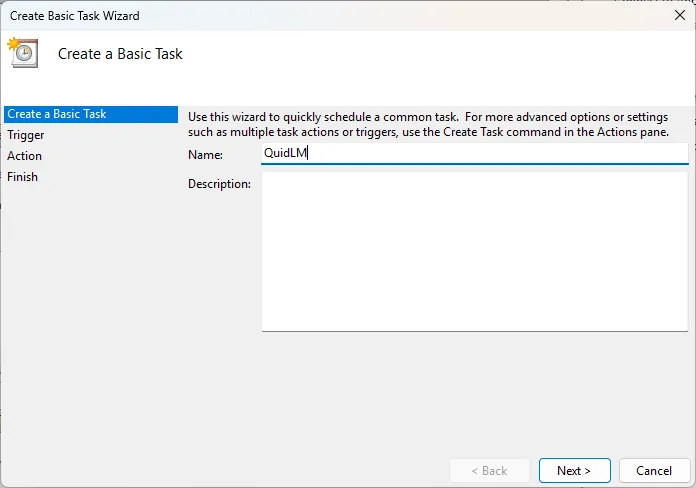
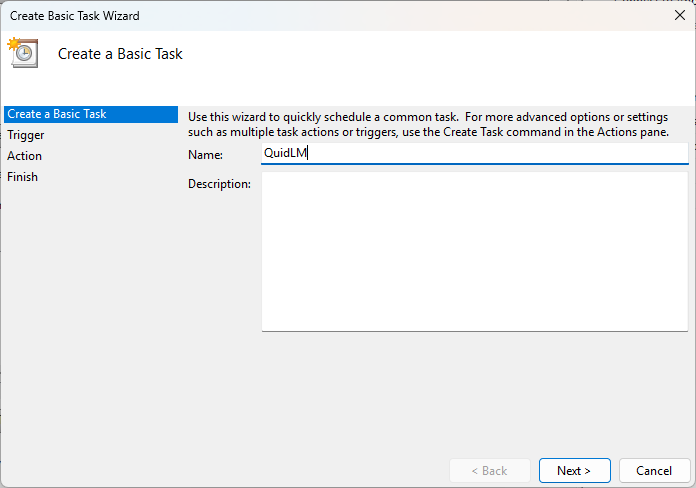
This starts a task creation "wizard" - a dialog box that subdivides the task creation into several steps. You are several short steps away from completion. Press the
Next >button after completing each of wizard's steps. -
Name the task, and describe it in more detail if you want.
-
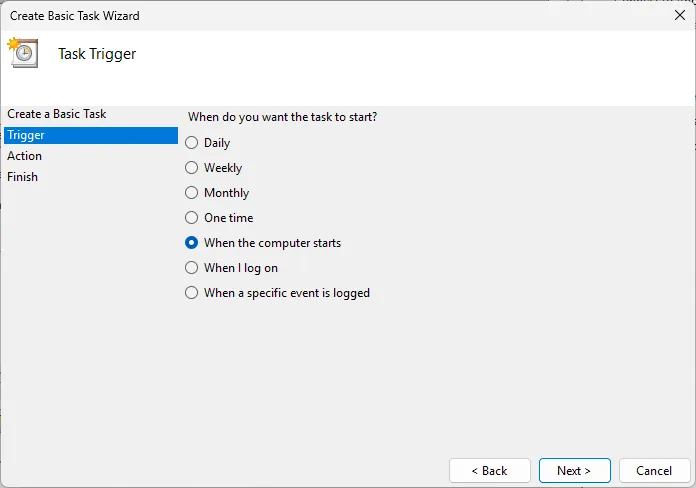
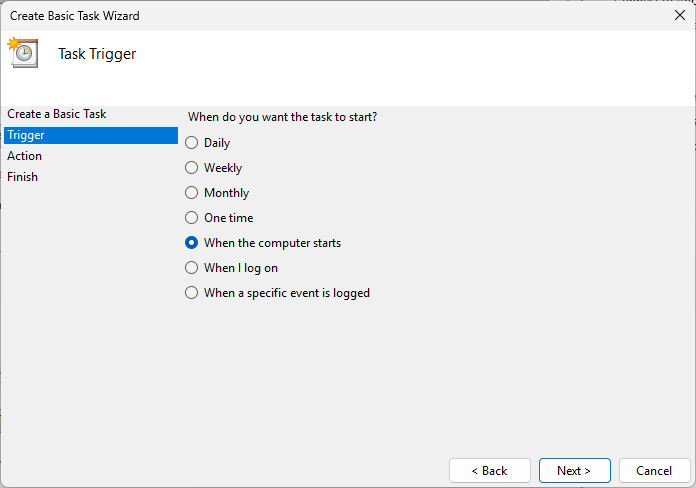
Choose When the computer starts as the trigger.
-
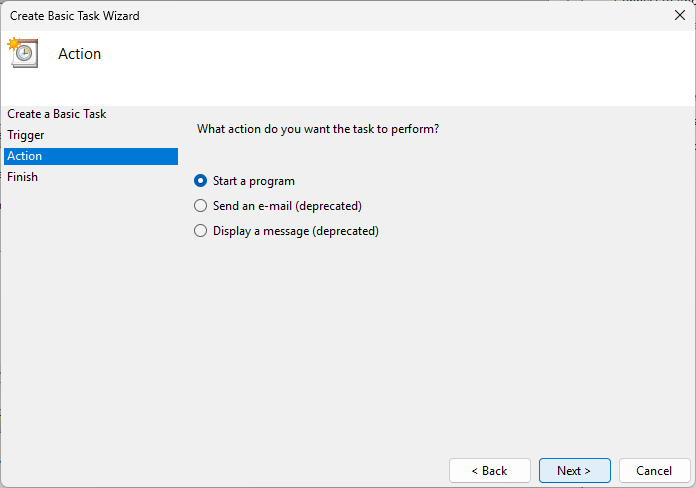
Use
Start a programas the desired action.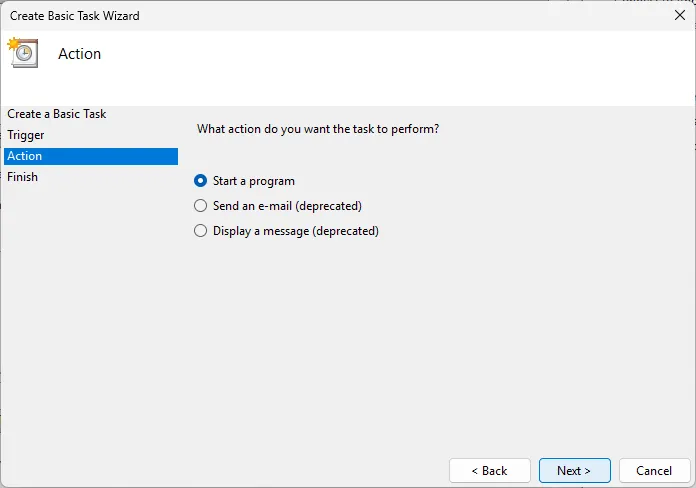
-
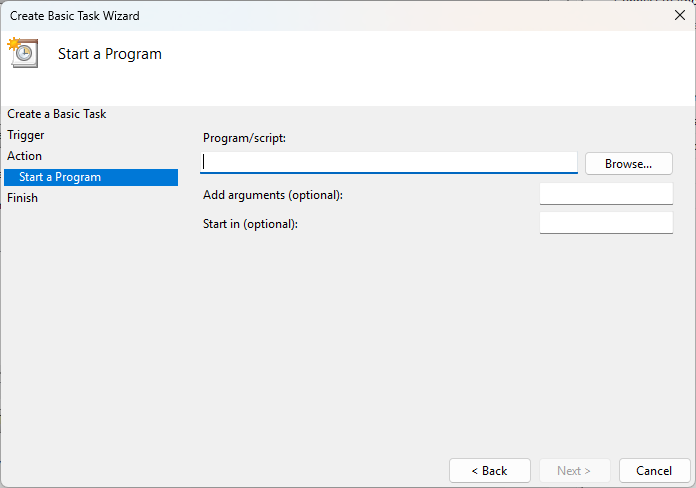
Use the
Browse...button to navigate to theqlm_server.exeand select it as the program to run.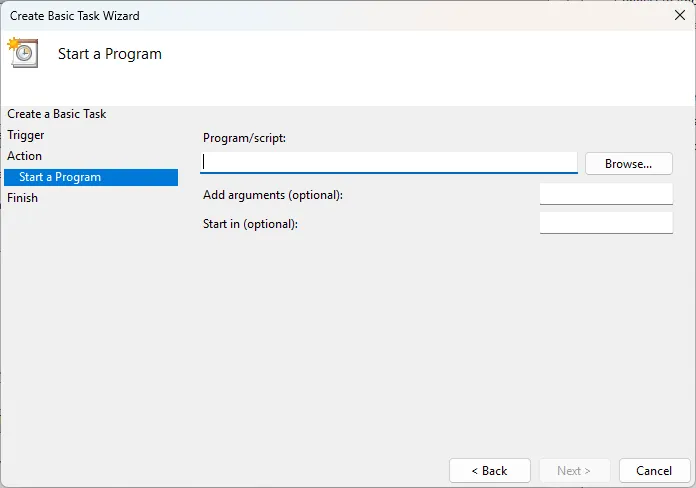
Also, enter the directory where you want your data to be stored into the
Start in (optional)box. Make sure that that directory is writable. -
Finish the wizard.
That sets the QuidLM floating license server to start automatically during the Windows boot process and thus protects the service from long interruptions if the computer is restarted.
Use Create task... action of Task Scheduler instead of Create basic task... if you want more
control over how this service is run.
For example, you can select which user account is used for running this service.
Autostart (Linux)
The systemd facility is a part of typical Linux distribution. It is a system and service manager and
is used to bootstrap the user space processes of the operating system. Create the QuidLM.service
file in the /etc/systemd/system directory. For example,
sudo cat >/etc/systemd/system/QuidLM.service <<EOF
[Unit]
Description=Quid License Manager
After=network.target

[Service]
Type=simple
ExecStart=/path/to/qlm_server
Environment="QLM_DB_PATH=/path/to/writable/directory"

[Install]
WantedBy=multi-user.target
EOF
Replace /path/to/qlm_server above with the full path of qlm_server application on your computer.
Also, specify the writable directory where you would like to keep you database files in the QLM_DB_PATH
environment variable defined in the above snippet.
Start the QuidLM service and register it to start automatically:
sudo chmod 644 /etc/systemd/system/QuidLM.service

# start the QuidLM server
sudo systemctl start QuidLM

# mark the QuidLM service for autostart when the system boots
sudo systemctl enable QuidLM
Other systemd commands you may use for operating this service are
sudo systemctl status QuidLM   # is the service running?
sudo systemctl stop QuidLM     # stop the service
sudo systemctl restart QuidLM  # restart the service
sudo systemctl disable QuidLM  # do not auto-start at computer boot up
Backup
The server stores its data in the directory specified by the QLM_DB_PATH environment variable.
If the environment variable is not set, the current working directory is used.
Regularly backup that directory for recovery from power interruptions, hardware failures, and other disasters.
QuidLM ships with lmdb_copy utility, which allows to backup the database without stopping the server.
One of the ways to ensure disaster recovery is to snapshot the database and copy it to a remote site at regular intervals.
cd "$QLM_DB_PATH"
LOCAL_BACKUP_DIR="/path/to/backup/dir"
for db in *.mdb; do
    # Safe snapshotting of a live LMDB database to a temporary backup dir
    SNAPSHOT_DIR="$LOCAL_BACKUP_DIR/$db"
    # the backup dir must exist and be empty
    rmdir -r "$SNAPSHOT_DIR"
    mkdir -p "$SNAPSHOT_DIR"
    lmdb_copy "$db" "$SNAPSHOT_DIR"

    # Securely transfer the consistent snapshot to a remote backup site
    rsync -az "$SNAPSHOT_DIR" user@backup-node:/path/to/backup/
done
License session logging
QuidLM allows to keep license session logs. The logs record each license use: who and when checked out the license, for how long, and on which computer. This functionality is not enabled by default, as the server also maintains license usage statistics - and that is typically of more interest than the timestamp and destination of each license checkout.
To enable the license session logging, set the QLM_LOG_SESSIONS environment variable to an integer -
the number of days to keep the session logs.
When the environment variable is not defined, the session logging is disabled.
The log files are recorded in the session.db sub-directory of the directory specified by the QLM_DB_PATH
environment variable. If QLM_DB_PATH is not defined, the current working directory is used.
Multi-server setup
You can setup multiple floating servers. Having multiple servers allows to ensure high availability of licenses and to avoid service outages. Different setups come with different costs and compexity issues, and they are discussed in the following subsections.
Active-active setup: multiple primary servers
In this configuration customer's licenses are deployed to several floating servers. The end-user's computers are configured to connect to one of those servers at random, by specifying all those servers in the license configuration environment variable:
SET QLM_LICENSE_PATH=9501@primary1.example.com;9501@primary2.example.com
In the above configuration, the pool of available licenses is divided into two equal parts, and the halfs are deployed to the two servers. The QuidLM library will ask for license from those servers in random order. A load on a single server is reduced and thus the maximum throughput of the system can be increased, roughly proportional to the number of active servers.
The downside of this arrangement, in addition to added complexity and footprint at all times, is that this may slow down the service from the point of view of end-users when there is a high contention for licenses. If one of the servers is out of licenses, the end-users' computers will waste time if they, by chance, attempt to get a license from that server first.
QuidLM can easily handle 10,000 simultaneous users, therefore you should only consider this approach when
- the pool of licenses is much bigger than 10,000;
- you would like to run the servers in different locations and thus avoid the full outage when that server or location becomes unavailable. Note that you will still lose access to the licenses that are deployed to that one server (until that server/location is recovered).
Active-passive setup: primary and secondary servers
This option is available to the software vendors that run floating servers for their customers. The vendor has the option of duplicating all licenses and depositing the duplicates to a secondary server. The end-user's computers would have something like this in their license configuration environment variable:
SET QLM_LICENSE_PATH=9501@primary.example.com;-9501@secondary.example.com
Note that the - prefix is what designates 9501@secondary.example.com as the secondary license server -
not its location in the license string. With the above configuration,
the application that uses QuidLM licensing library will only attempt to use
the secondary server if it cannot connect to the primary one.
The primary and secondary servers should have exactly the same set of licenses.
The server operator is supposed to monitor the health and availability of the primary server
and to make the secondary server available only when the primary one is not.
If the secondary server is always available, the end-users may double the number of licenses
available to them, by removing the - prefix and using both servers as the primary ones:
SET QLM_LICENSE_PATH=9501@primary.example.com;9501@secondary.example.com
Using multiple active and passive servers
The active-active and active-passive approaches can be used simultaneously. For example, the configuration environment variable may say
SET QLM_LICENSE_PATH=9501@primary1.example.com;9501@primary2.example.com;-9501@secondary1.example.com;-9501@secondary2.example.com
QuidLM will connect to the primary servers in random order. If all primary servers fail, and only in that case, QuidLM will attempt to use the secondary ones, also in random order. The same caveats apply:
- Multiple primary servers only make sense for pools of licenses that are bigger than 10,000.
- It is the server operator's responsibility to monitor the primary server(s) and to turn on the secondary one(s) only when necessary.